How do I get rid of the ads and the life story when saving a web recipe?
Three ads, an autoplaying video and the author's summer vacation before the ingredient list. Here is how to keep the recipe and leave everything else behind.
In this article
You search for a banana bread recipe. You open the first result. A banner covers the bottom of the screen, a video starts playing in a corner, a pop-up asks for your email. You scroll. The author tells you about the fall her grandmother taught her to bake, then why overripe bananas are better, then the difference between butter and oil. Twelve paragraphs later, between two ads, the ingredient list.
And next week, when you want to bake that bread again, you walk the whole way back. The problem is not the recipe, which is often excellent. It is that you reread it in its packaging every single time. What you need is to take it out of the page once and keep it clean.
What is a “clean” recipe?
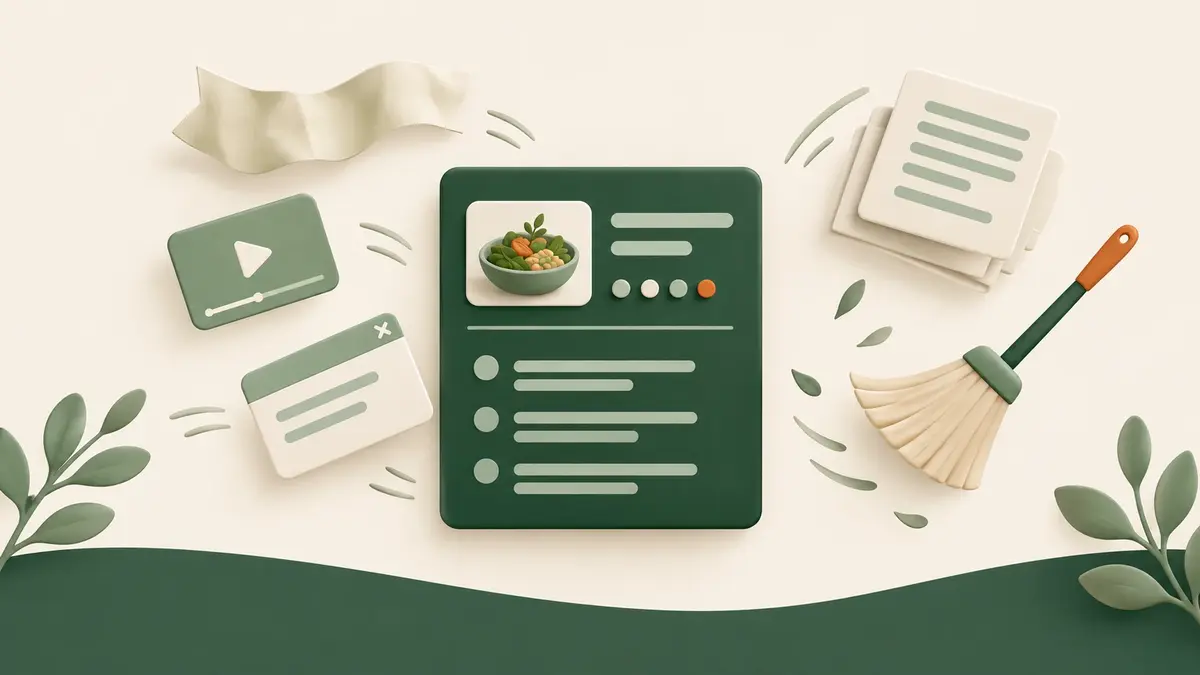
It is the recipe and nothing else, stored in a fixed shape: a title, a photo, servings, times, an ingredient list, numbered steps. Everything that surrounded the recipe on the blog stays on the blog: the ads, the comments, the links to other recipes, the newsletter sign-up and the story.
Once it is in that shape, the recipe gains things the original page will never offer:
- it reads at a glance, ingredients at the top, steps below, no pointless scrolling;
- it stops changing, even if the blog is redesigned, moves or shuts down;
- it can be found, in your recipe books, next to the ones that came from elsewhere;
- it becomes useful, because it can go on the weekly menu and feed a grocery list.
The fixes that already exist
You are not helpless against a cluttered blog. Plenty of sites have a “Jump to recipe” button at the top that skips the story. Reader mode in Safari or Firefox strips a good share of the ads. Some free websites show the recipe on its own if you give them the address. And Paprika, the best known recipe manager, has its own built-in browser that pulls recipes out of the pages you visit.
The first three share one flaw: they clean the page while you read it, then hand it back untouched the next time. Nothing is kept. Paprika does keep the recipe, but it is sold per platform as a one-time purchase and has no real web version.
Origano does the cleanup once, and keeps the result:
- An AI sorts the text, telling the ingredients from the steps and leaving the story out.
- Only practical notes survive: a substitution, a storage tip, a serving idea, three short sentences at most.
- The photo is copied to Origano, so it does not vanish the day the blog changes hosts.
- The link to the original page stays on the recipe, so you can go back and visit the author whenever you like.
- No advertising, on the free plan or on Pro.
A detailed comparison against the six main competitors lives on the alternatives page.
How to keep only the recipe
There is nothing to clean up by hand. The work happens at import time, and it happens once per recipe.
1. Copy the page address
On the blog, copy the address from the browser bar, or use your phone’s Share button and pick “Copy”. No need to scroll down to the recipe or close the pop-ups first: what matters is the address, not what is on screen.
2. Paste it into Origano
In Origano, open a recipe book, add a recipe, pick the URL tab and paste the address. A few seconds later the recipe is there: title, photo, servings, times, ingredients, steps. The story, the ads and the comments stayed on the blog.
3. Give it a thirty-second read
Glance over the new recipe. An AI did the sorting, and sorting is worth a check: a quantity, a step, a note to keep or drop. Everything can be edited like a recipe you typed yourself.
4. For sites that block it, use the extension
A few sites refuse to be read by a server, or keep their recipes for subscribers. The Origano extension, for Chrome or Firefox, then captures the page from your own browser, the one already signed in, and the same cleanup applies. The details are in the article on the extension.
5. Empty your bookmarks, a handful at a time
You probably have thirty-odd recipes saved in your browser bookmarks, all waiting behind the same story. Take five a night while dinner cooks. Within a week the folder is empty and every recipe is clean.
What it changes in the kitchen
The recipe fits on the screen. Ingredients and steps, nothing else, nothing pushing the text down while your hands are in the dough.
The screen stays on. While a recipe is open in Origano, the phone or tablet does not go to sleep halfway through a step. No more waking it up with a floury finger.
It prints on a page. The print button gives you the recipe alone, with no menus and no buttons, ready for the fridge door or a binder.
It goes on the menu. A clean recipe can be drawn by the weekly menu generator, and its ingredients add themselves up in the grocery list. That is where the cleanup really pays off: a recipe you can read is good, a recipe you actually cook is better.
What does it cost?
It is free up to 50 recipes, with no credit card, and the free plan includes every import method, meal planning and the grocery list.
Beyond that, Pro is $30 USD per year, about $2.50 a month, or $4 USD monthly.
No advertising, on either plan.
Where to start
- Create a free account, it takes a minute.
- Open the most cluttered recipe in your bookmarks, the one you dread rereading, and import its address.
- Put the two screens side by side.
The recipe has not changed. It has simply stopped making you wait.