How do I install Origano on my phone without the App Store?
No App Store, no Google Play: Origano goes on your phone's home screen in three taps, straight from the browser. Here is how to install it on iPhone and Android.
In this article
You search for Origano in the App Store and it is not there. You try Google Play, same result. You conclude there is no app, and go back to the browser, typing the address every time you want to see the grocery list.
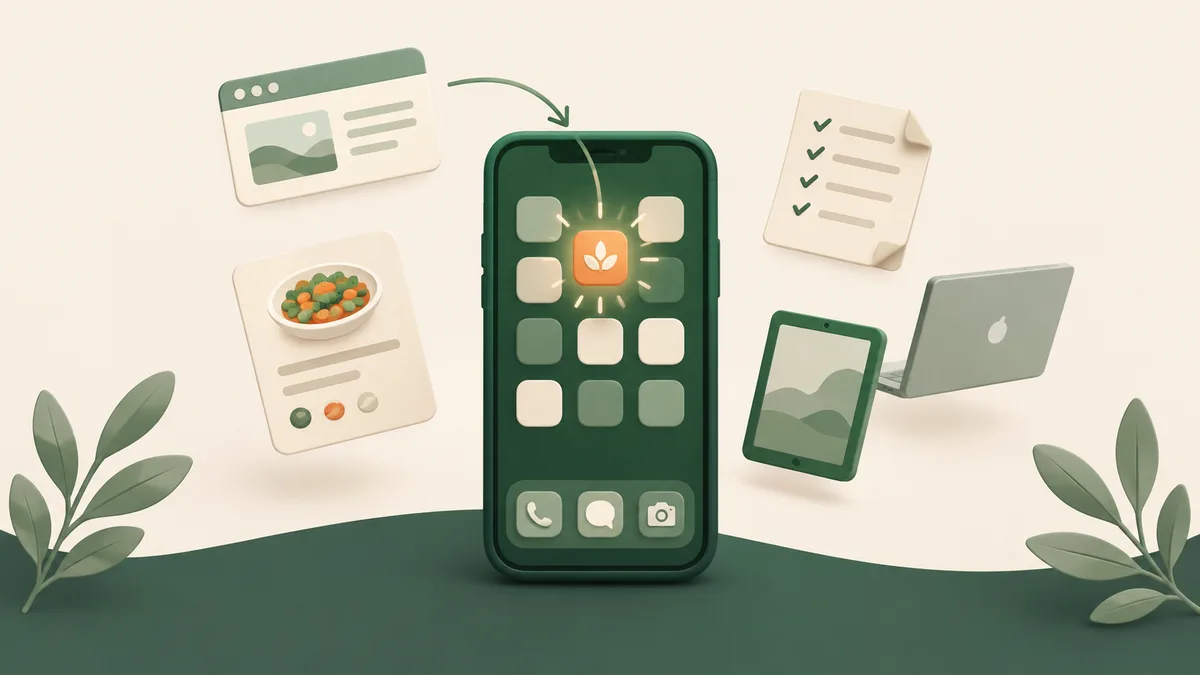
There is an app. It just does not go through a store. The problem is not finding the right store, it is knowing you do not need one: Origano installs straight from your phone’s browser, in three taps, and from then on behaves like any other icon on your home screen.
What is an installable web app?
An installable web app (developers call it a “PWA”) is a website built to become an app. You open it once in the browser, add it to your home screen, and from then on it has its own icon, opens full screen with no address bar or tabs, and shows up in your list of open apps like any other.
What that gets you, in practice:
- nothing to download from a store, and next to nothing stored on the phone;
- no updates to run, the version you open is always the latest one;
- the same account everywhere, on the phone, the tablet and the computer, with nothing to sync;
- no store between you and the app, and no Apple or Google account needed to install it.
The others go through the stores, and it has a cost
Most recipe managers are store apps first. Paprika, very complete, is sold per platform: about $5 on your phone, then another $30 if you want your recipes on your computer. Mealime and ReciMe are built for the phone and offer very little on a computer. That works fine as long as you stay on one device. The day you want to plan the week on a big screen and tick off the list on the small one, it gets complicated.
Origano made the opposite choice:
- One app for every device. iPhone, Android, tablet, Mac, PC, Chromebook: the same interface and the same data.
- Nothing to buy per platform. The free account works everywhere, and so does Pro.
- One place where your recipes live, on the server, so there is no copy drifting apart between the phone and the computer.
A detailed comparison against the six main competitors lives on the alternatives page.
How to install it, step by step
Give it a minute, once.
1. Open Origano in your phone’s browser
Go to origano.app and sign in, with your email address or with Google. If you do not have an account yet, now is the time to create one: it is free and needs no credit card.
2. On Android, tap “Install”
In Chrome, an “Install Origano” banner shows up on its own on your recipes page. One button, one confirmation, and the icon is on your home screen.
If you closed the banner, open Chrome’s menu (the three dots, top right) and pick “Install app” or “Add to Home screen”, depending on your version of Chrome.
3. On iPhone, go through the Share button
On iPhone, Safari handles it. Tap the Share button, the square with the arrow pointing up, scroll down and pick “Add to Home Screen”. Origano reminds you of this in a banner the first time you open your recipes on an iPhone.
4. Open it from the icon
From now on, open Origano by tapping its icon, not through the browser. The app opens full screen, on your recipes, with no address bar: just your recipes, your weekly menu and your grocery list.
5. Send it recipes from your other apps (Android)
This is the one that changes the most day to day. Once Origano is installed on Android, it shows up in the Share menu of your other apps. You come across an Instagram reel, a Facebook post or a blog in Chrome: tap Share, then Origano, and the import form opens with the link already filled in. All that is left is to confirm.
On iPhone this shortcut does not exist, because Apple does not allow it for web apps. The detour takes ten seconds: copy the link, open Origano and paste it into the URL import.
6. Press and hold the icon (Android)
A long press on Origano’s icon brings up three shortcuts: My Recipes, Meal Plan and Add a Recipe. Handy when you only want to check tonight’s dinner, or jot down a recipe while it is on your mind.
What changes once it is installed
Origano is a thumb away, not an address away. It sits with your other apps, and at the store the list opens as fast as a text message.
You never run an update. An improvement shipped in the morning is on your phone by lunch, with nothing to download and no store notification.
Switching phones costs nothing. Your recipes are not on the device, they are in your account. On the new phone you sign in, put the icon back, and everything is there.
The big screen is still there. On Sunday you build the week’s menu on the computer. On Tuesday you tick off the list on the phone. It is the same app, and there is nothing to move from one to the other.
One honest note: like a website, Origano needs an internet connection to show your recipes.
What does it cost?
It is free up to 50 recipes, with no credit card, and installing it on your phone is part of the free plan, along with every import method, meal planning, the grocery list and reading recipes aloud.
Beyond that, Pro is $30 USD per year, about $2.50 a month, or $4 USD monthly. One subscription, good on every device you own.
No advertising, on either plan.
Where to start
- Create a free account from your phone, it takes a minute.
- Add Origano to your home screen: “Install” on Android, Share then “Add to Home Screen” on iPhone.
- Import a first recipe by URL, or share it straight from Instagram if you are on Android.
On the computer, the same address is waiting with the same recipes. And to import from your computer’s browser, there is also the Origano extension.